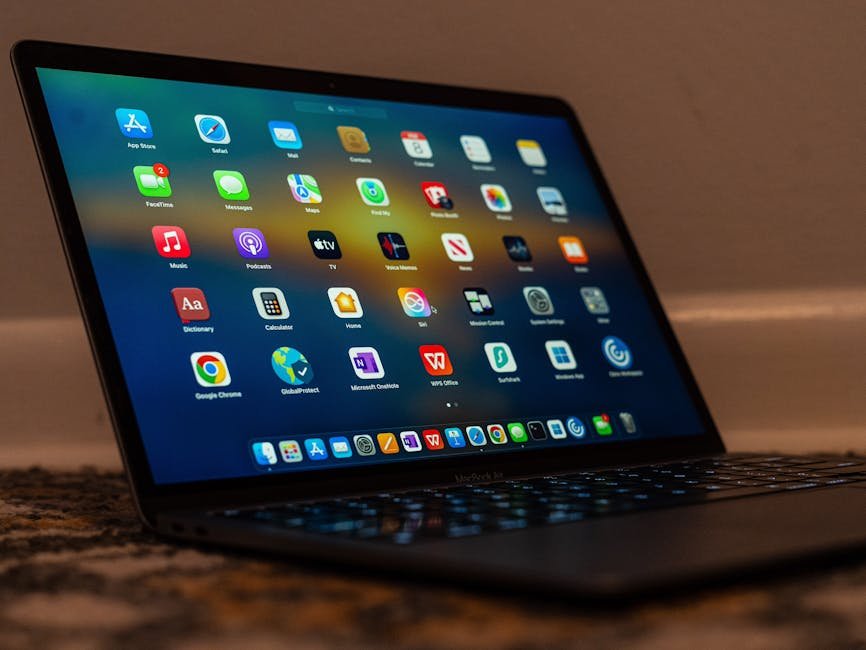
Your Mac’s Not Kidding Around: Unlocking Real Power with Third-Party Apps & Customization
Ever wonder if your Mac is really pulling its weight, or if you’re just scratching the surface? Because for all its sleek design and smooth moves, vanilla macOS can feel a bit… stiff. Especially if you’re a power user. Coming from, say, Linux or Windows, you know the struggle is real. Truly boosting your Mac’s output means ditching Apple’s defaults, digging up those killer third-party apps that transform how you get things done. Make your workflow actually special.
Vanilla macOS Can Be a Pain for Power Users (Especially if You’re Used to Linux or Windows)
Let’s be real. When you first sit down with macOS, straight out of the box, it hits different. If you’re used to the wild freedom of Linux or the familiar ways of Windows, some default Mac behaviors can straight-up feel like tying your hands behind your back. Seriously. Think about window management – trying to drag and resize windows from any corner, a basic ability on other operating systems, just isn’t there. It’s a frustrating limitation for anyone with multiple monitors who needs to snap things into place quickly.
Then there’s the keyboard shortcut circus. The whole Control-Alt-Option mess can get dizzying if your hands are programmed for a different layout. And while remapping keys is an option, it isn’t always a smooth ride, especially with non-Mac keyboards. Even everyday tasks get messed up: notifications that won’t let you copy text, or the Finder just refusing to open a new tab with a middle-click. Minor gripes? Maybe. But they pile up, slowly chipping away at your rhythm.
And another thing: Beyond the basics, we’re talking about global shortcuts that don’t really work globally unless the app is the main focus, permissions that vanish after updates, and you just can’t boost audio past 100%. Don’t even get me started on the “focus follows mouse” feature — a game-changer for speed demons. It’s simply not present natively in macOS. Every window interaction becomes an extra click. Plus, Stage Manager, while neat, acts funky on secondary displays, making quick window switching a pain. Even third-party gear, from monitors to mice, can sometimes throw a wrench in the works. Think frustrating flickering or connectivity drops. The plain experience, for a power user, isn’t exactly a chill vibe. Not at all.
Third-Party Apps Like BetterTouchTool and Raycast Are Your Mac’s Superheroes
This is where the real magic happens. If you want your Mac to work for you, not against you, then you need to bring in the big guns. BetterTouchTool acts like a master key. It lets you assign global shortcuts and custom mouse gestures for literally anything. Close windows with a quick Ctrl+Shift+Q. Maximize with Ctrl+F. Or send them to a specific workspace with Ctrl+1. This tool alone can multiply your efficiency by a hundred times. Game changer.
Then there’s Raycast, basically Spotlight on steroids. It’s a quick launch thing. But it does so much more. Clipboard history, currency conversion, calculators that remember past sums, web searches, and, most importantly, extensions. Thousands of free extensions let you do everything from OCR on images to finding SVG logos, checking internet speed, or managing Homebrew packages. It’s a must-have tool. Almost makes you completely forget about those initial macOS frustrations. Poof. Gone.
macOS Does Shine on Speed and RAM
Beneath those annoying default settings, macOS is a powerhouse. The animations are buttery smooth; every swipe, every transition just feels good. The system, especially on M-series chips, runs with impressive speed and responsiveness. Browsing the web or launching apps feels instantaneous. And even under heavy loads, it rarely skips a beat. Pure performance.
One of the unsung heroes here is macOS’s RAM management. Forget those old Windows Vista days when you always worried about memory. Even with dozens of applications open, 4K video rendering humming in the background, and multiple browser tabs chugging along, the system remains fluid. This isn’t just good software. It’s also a testament to the M-series chips and their unified memory architecture. It smartly shares memory for both CPU and GPU tasks. Just a hella efficient system that keeps things zippy.
Customization Tools Are Super Important to Fix Mac’s Weird Limits
To truly tame your Mac, specific tools are a necessity. For that hard-to-find “focus follows mouse” feature, AutoRaise comes to the rescue. Install it. Just hover your cursor over a window, and it gains focus – no extra clicks needed. Just watch out; some demanding apps like DaVinci Resolve might need to be added to an exception list to avert slowdowns.
For the window resizing woes, Easy Move + Resize is your best friend. It lets you drag and resize windows from anywhere. Just like Linux desktop environments. Once you’re used to this level of control, there’s no going back. Because it’s too good. And for all those global shortcuts, as mentioned, BetterTouchTool makes it happen. These aren’t just minor tweaks; they’re essential upgrades for anyone serious about getting stuff done.
Developers, Listen Up: Homebrew Is Your Friend
For developers, power users, or anyone looking to truly customize their system, Homebrew is non-negotiable. This package manager brings the ease of Linux-style software installs right to your macOS terminal. Need a specific tool or utility? No more hunting for installers online. A simple brew install [package] handles it. It streamlines the whole setup process for dev environments. Plus, you get quick access to tons of open-source software, making macOS a much more solid setup for serious coding and customization.
Switching to Mac Means Some Initial Brain Bumps
Switching to Mac, you’ll definitely encounter some quirks. The top bar, for instance, is a constant presence. Weird at first for new folks. But it quickly becomes a hub for application options and help menus. Surprisingly handy for rediscovering forgotten shortcuts. Another initial headache is the “Open Anyway” dance for untrusted apps; it involves a trip deep into system settings. A pain in the butt procedure you’ll wish was a simple “trust and open” button. So annoying.
But: Other built-in features, like Screen Time, offer decent usage checks, helping you understand where your hours go. While it might occasionally miss activity from certain third-party apps, it’s a pretty clever bit of kit. Meanwhile, calendar and contact connections are super slick, allowing system-wide access and easy event creation from almost any app. Even Finder boasts useful “Quick Actions” for tasks like background removal or instant PDF conversion. And another thing: Don’t sleep on the Wi-Fi performance; Macs often deliver wired-equivalent speeds. A real blessing if you’re not into wrestling with Ethernet cables.
Ultimately, while the raw, out-of-the-box macOS experience can be a bit of a head-scratcher for those of us engrained in other operating systems, it clearly thrives with the right toolkit. The journey from initial frustration to pure productivity often involves a hand-picked list of third-party apps that truly bridge the gap. It’s not about Apple changing its ways; it’s about knowing how to make macOS dance to your tune. That’s the secret.
Frequently Asked Questions
What’s annoying about new Macs for switchers?
Users often hit issues with restrictive window resizing. No global keyboard shortcuts. You won’t find a “focus follows mouse” feature. And dealing with untrusted apps is a hassle. Plus, basic tasks like quickly copying text from notifications or middle-clicking for new Finder tabs can just feel weird.
Best tools for Mac productivity freaks?
BetterTouchTool is a must for creating global shortcuts and custom mouse gestures. That’s total control over your system. Raycast acts like a souped-up Spotlight, giving you clipboard management, calculators, web searches, and a huge collection of productivity-boosting extensions. Other solid options include AutoRaise for focus-follows-mouse and Easy Move + Resize for totally flexible window management.
Is Mac RAM management any good, especially with M-chips?
Oh yeah, macOS is great at RAM management, particularly with M-series chips. The system handles tons of apps open, even hard tasks like 4K rendering, without significant slowdowns. This efficiency partly comes down to the M-series chips’ unified memory architecture. It smartly allocates resources, making the whole system feel quick and smooth, even when pushing it hard.